
Aktualisiert mit 6. November 2024
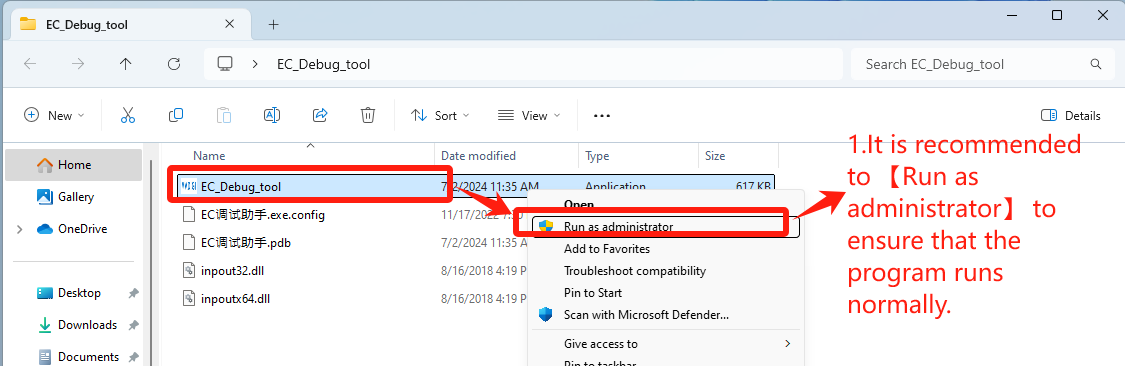
1. Doppelklicken Sie, um EC_Debug_tool zu öffnen
EC Tool Download: Klicken Sie hier
- It is recommended to 【Run as administrator】 to ensure that the program runs normally——Step1【Run as administrator】.
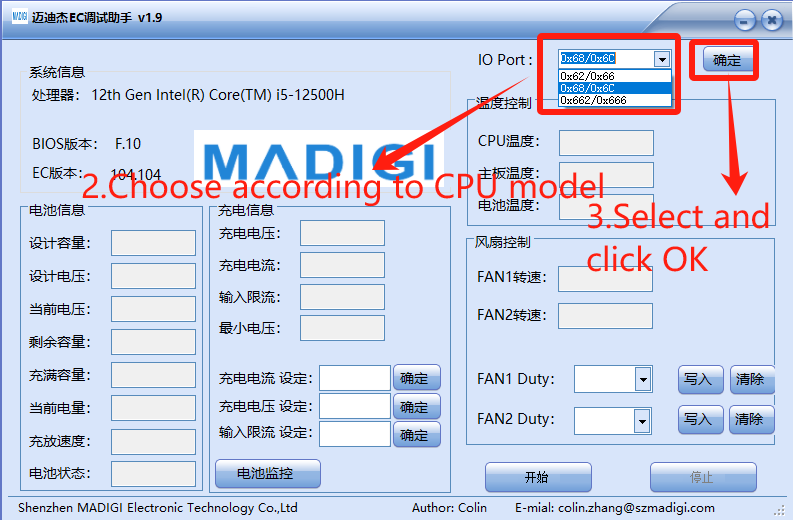
2. Entsprechend der CPU-Marke einstellen
- Choose according to CPU model
- IO Port: Select 【0x62/0x66】for CPU Intel platform, click “OK”——Step3【确定】
- IO Port: Wählen Sie 【0x662/0x666】 für CPU AMD platform, click “OK”——Step3【确定】
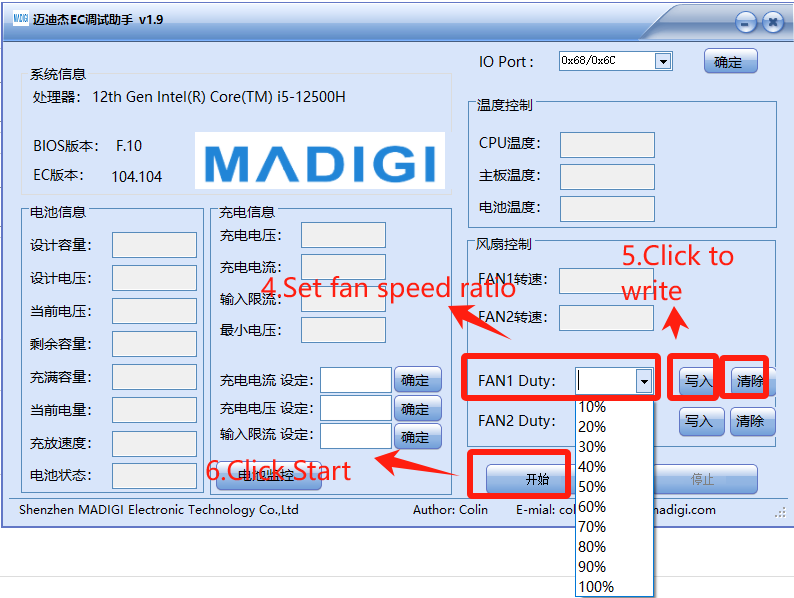
3. Stellen Sie die Lüftergeschwindigkeit ein, indem Sie 【FAN1 Duty】 wählen.
- Set fan speed ratio——Step4【FAN1 Duty】
- Click to write——Step5【写入】
- Click Start——Step6【开始】
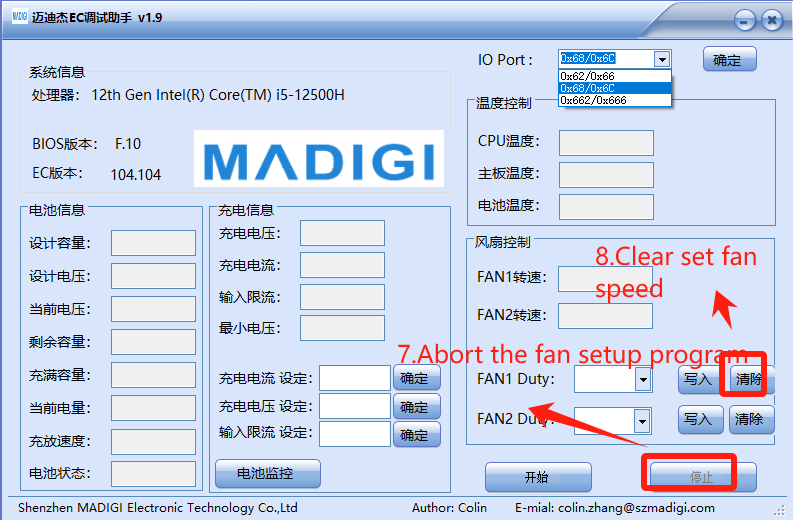
4. Einstellungen löschen und neu debuggen
- Abort the fan setup program——Step7【停止】
- Clear set fan speed——Step8【清除】
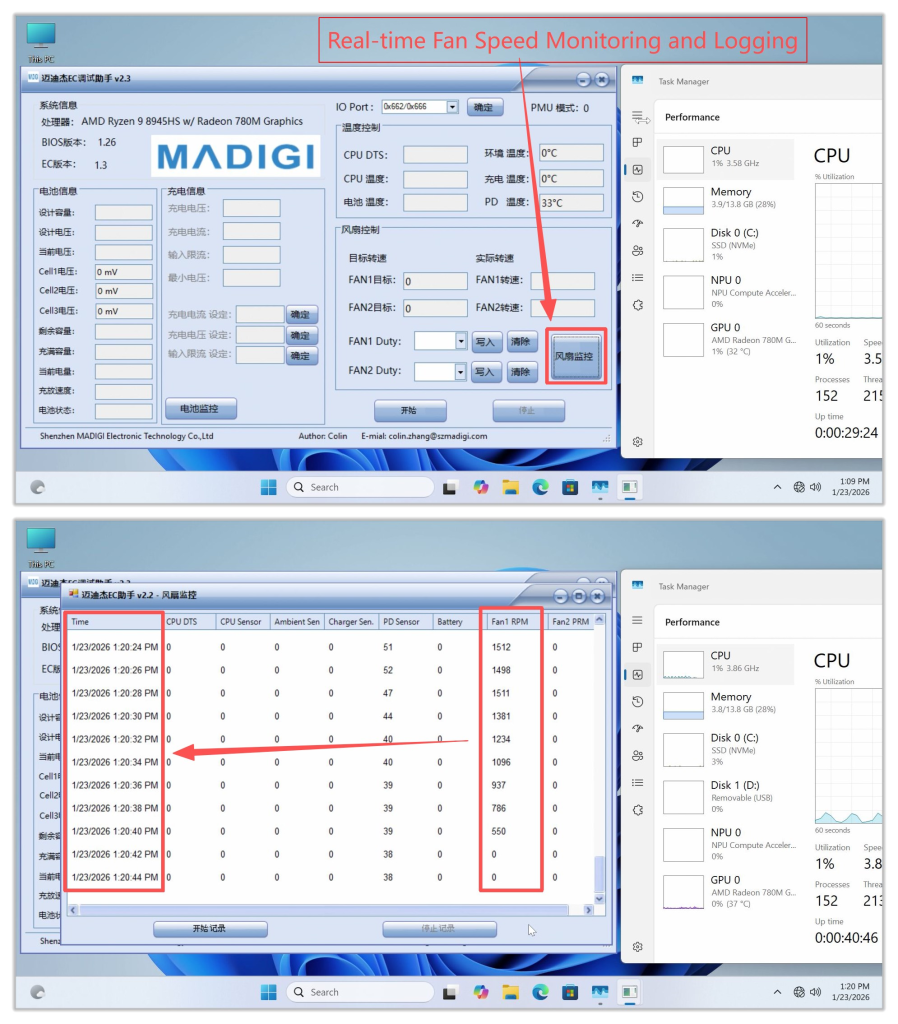
Other Features: Fan Speed Monitoring and Logging
- Clicking this button will display real‑time fan speed. If the fan speed is abnormal, you can take a screenshot and provide feedback to GEEKOM Engineers.
- It is recommended to open an additional Task Manager window and place it nearby to monitor hardware resource usage under different fan speeds. Generally, higher CPU usage leads to increased temperatures, which in turn causes the cooling fan speed to rise.
Vielen Dank fürs Zuschauen. Wenn es irgendwelche Fehler gibt, sind Ihre Korrekturen willkommen.

 Deutsch
  English
  English (UK)
  English (Australia)
  Français
  English (Canada)
  Italiano
  Español
  Русский
  日本語
日本語