
Updated on April,29, 2026
GEEKOM has developed a dedicated software for data transfer that can be used on computers of all brands: GEEKOM PC Clone (click to download)
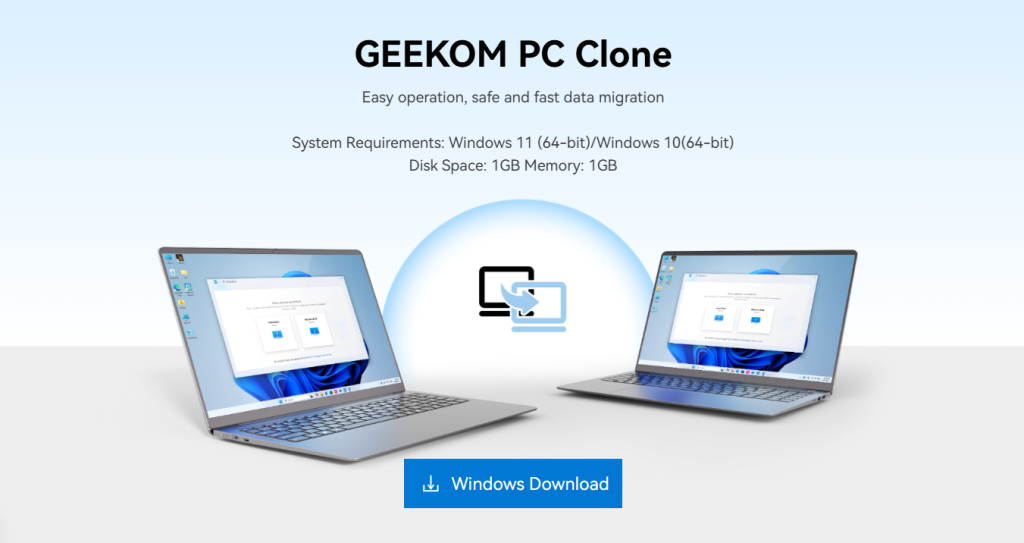
Notes:
- Both devices need to have the software installed and select “Send Data” and “Receive Data” respectively. By default, data is transferred to the root directory of the C drive on the new computer, but you can change the destination location when selecting files to transfer.
- The software transfers data via WLAN hotspot without requiring an internet connection, so there is no need to worry about data leakage.
- During the transfer process, both computers will temporarily be unable to access the internet. The larger the amount of data, the longer the transfer will take.
- It is recommended to set the system to “Never Sleep” before transferring data to prevent the computer from entering sleep mode and interrupting the transfer.
Tutorial
Tip:The overall process is relatively simple. You can skip the tutorial below and start using PC Clone directly, as the software provides relevant prompts during use.
1. Install PC Clone on both computers simultaneously
2. Set the devices for sending and receiving data
For the new computer to receive data, please click “Send Data”; for the old computer to send data, please select “Receive Data”.
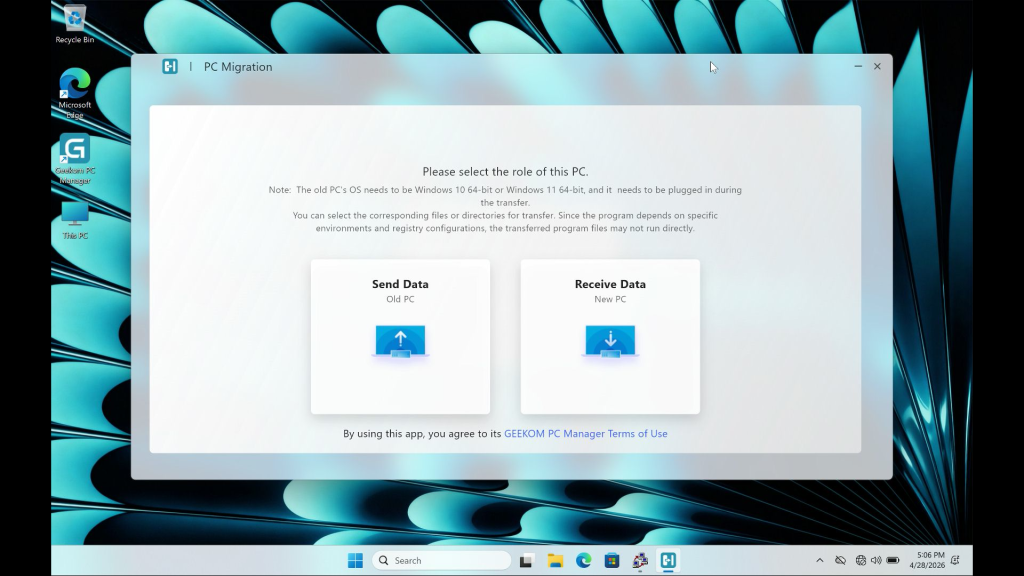
3. Follow the prompts to complete the transfer channel between devices
- Enter the random 4-digit password generated by the old computer on the new computer
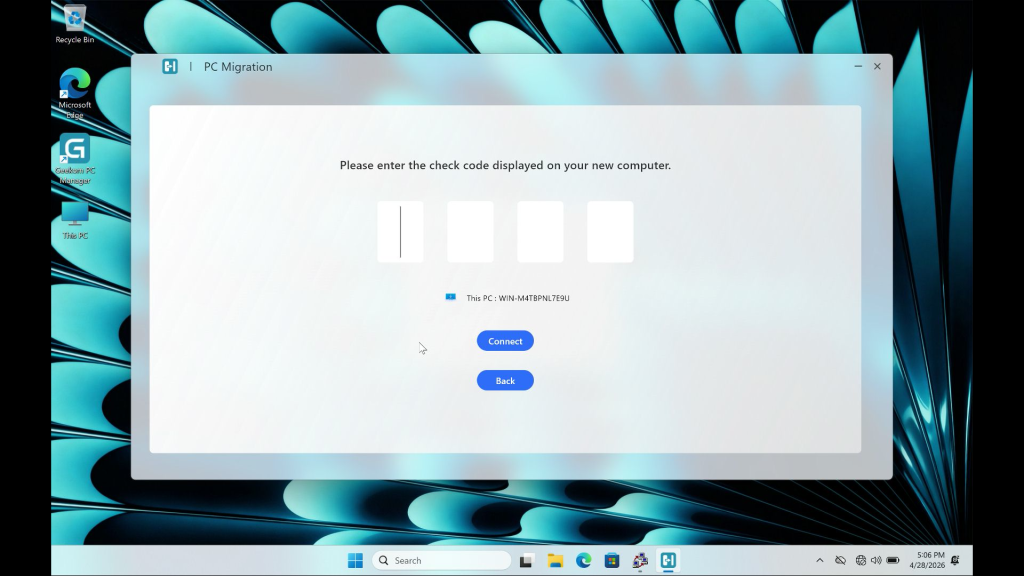
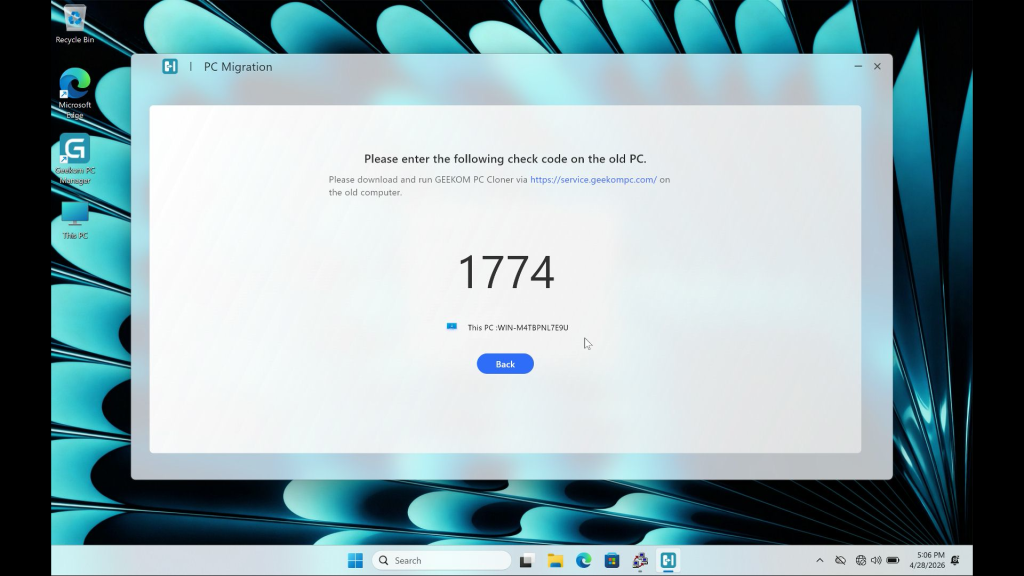
- Wait for the devices to complete the connection
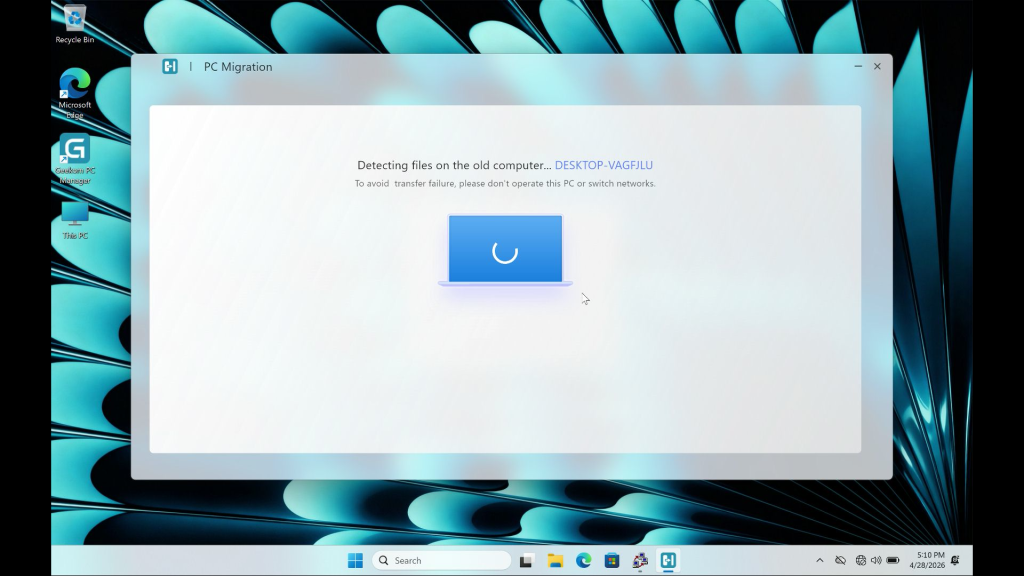
- Once connected, PC Clone on the new computer will display the disk directory of the old computer
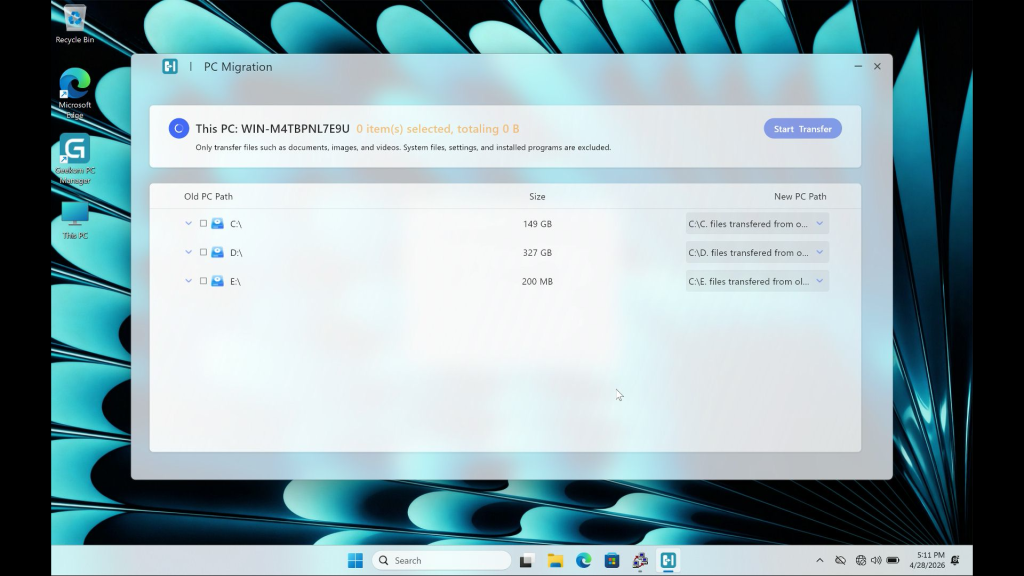
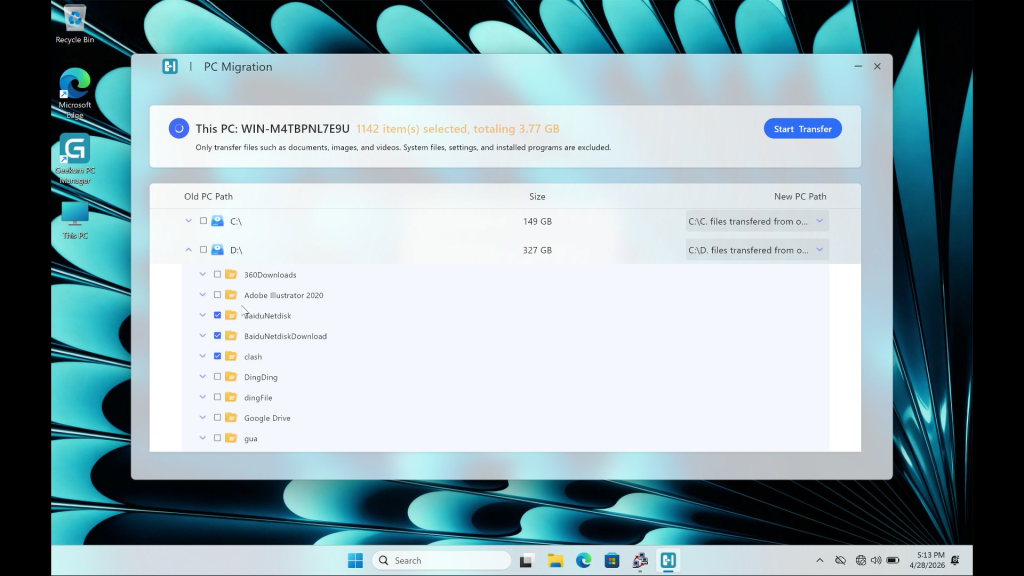
4. Select the files to back up and start the transfer
- By default, files are transferred to the C drive. Click the New PC Path on the right to change the backup file directory, check the files you want to back up, then click “Start Transfer” in the upper right corner.
- The transfer officially begins. Data transfer does not go through the network. Keep the devices powered on; sleep or hibernation may interrupt the transfer.
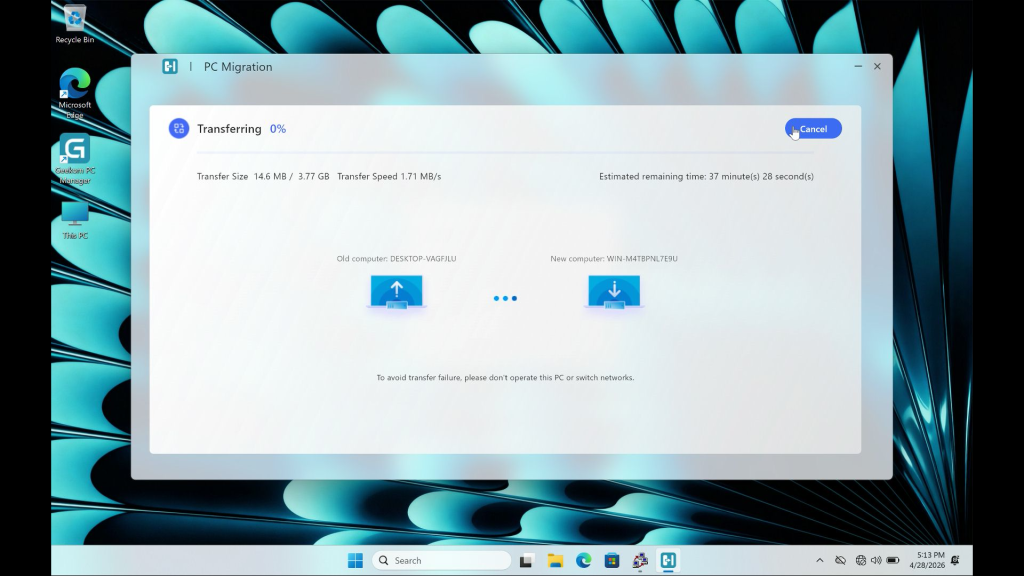
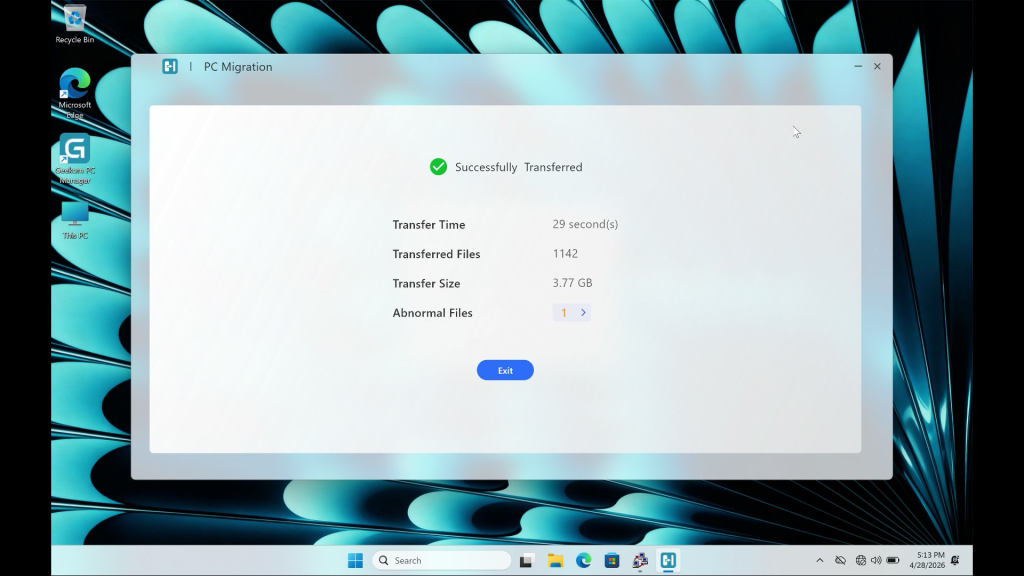
5. Wait for the transfer to complete
Vielen Dank fürs Zuschauen. Wenn es irgendwelche Fehler gibt, sind Ihre Korrekturen willkommen.

 Deutsch
  English
  English (UK)
  English (Australia)
  Français
  English (Canada)
  Italiano
  Español
  Русский
  日本語
日本語