
Updated on October,15, 2026
Tool: EC_Debug_tool V3.5 | Operating system: Fenêtres
1. Overview and Scope
EC_Debug_tool (EC调试助手), provided by the GEEKOM R&D team, lets you monitor real-time fan speeds and manually adjust the fan duty percentage on GEEKOM devices running Windows.
- Monitor fan speed: Read the current speed of the device’s internal fans to check their operating status.
- Adjust fan operation: Set the fan duty percentage to suit your cooling and noise requirements.
- Assist troubleshooting: Capture fan-speed screenshots or logs to help GEEKOM Support assess unusual behavior.
Usage note: The duty percentage does not directly represent the actual fan speed as a percentage of its maximum speed. Refer to the RPM reading for the actual speed. Reducing the duty percentage may affect cooling, so monitor the device temperature when making adjustments.
2. Download, Version, and Preparation
Tool name: EC_Debug_tool / EC调试助手
Version covered: V3.5
Executable: EC调试助手.exe
- Download the ZIP archive and extract all files into the same folder.
- Right-click EC调试助手.exe and select Run as administrator; confirm the User Account Control prompt if it appears.
Before running: Do not run the tool directly from the ZIP archive or move the EXE file out of the extracted folder. Running without administrator privileges may prevent fan parameters from being read correctly.
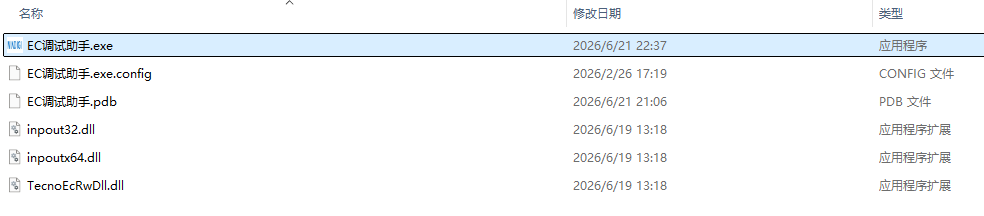
Figure 1. Extracted tool files (click to view the original image)
3. Select the I/O Port for Your Device
3.1 Switch the Interface Language
The tool opens in Chinese by default. Use the language selector in the upper-right corner of the main window to switch to English. The instructions below use the button labels shown in the English interface.
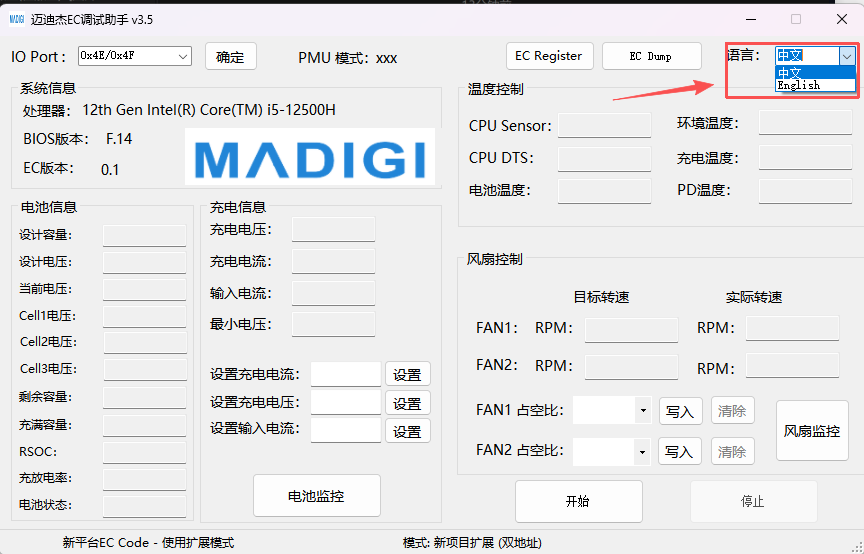
Figure 2. Switching to the English interface (click to view the original image)
3.2 Select and Apply the I/O Port
Locate IO Port in the upper-left corner of the main window. According to the GEEKOM R&D team, the default 0x4E/0x4F option in V3.5 is backward compatible with the fan-control interfaces across GEEKOM models. Use this option first.
| Priority | Device / When to use | I/O port |
|---|---|---|
| Preferred | GEEKOM devices | 0x4E/0x4F |
| Fallback | Intel-based devices: if the default port cannot read fan parameters | 0x62/0x66 |
| Fallback | AMD-based devices: if the default port cannot read fan parameters | 0x662/0x666 |
After selecting a port, click the adjacent Appl button to apply it, then follow Section 4 to start reading fan data. If the default port cannot read data, select the fallback port for your platform from the table above.
The fallback ports follow the selection rules used in earlier tool versions. They can be selected directly in V3.5; installing an older version is unnecessary.
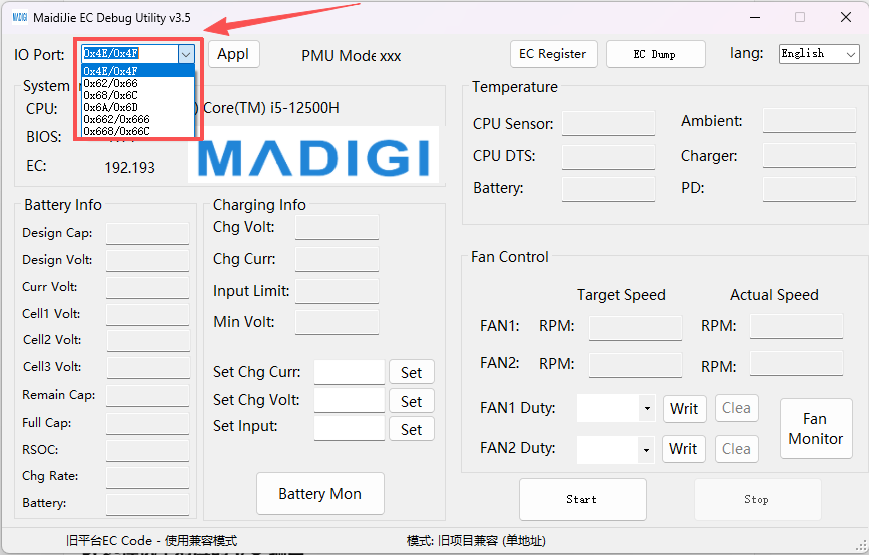
Figure 3. IO Port selector and Appl button (click to view the original image)
4. Monitor Fan Speed
4.1 View Real-Time Fan Speed
- Make sure you have selected the I/O port and clicked Appl.
- Click Start at the bottom of the main window to start reading fan parameters.
- In the Fan Control area, check the Actual Speed reading for FAN1. This is the actual fan speed, measured in RPM (revolutions per minute).
The speed field may be blank before reading starts. Once data is available, the tool refreshes the readings. Values may remain similar under stable operating conditions; they do not have to change noticeably with every refresh.
The number of readable fans depends on the model and its fan configuration. GEEKOM mini PCs typically have one fan, shown as FAN1. GEEKOM laptops typically have two fans, shown as FAN1 and FAN2. On a device with only one fan, a blank or zero FAN2 reading does not necessarily indicate a fault.
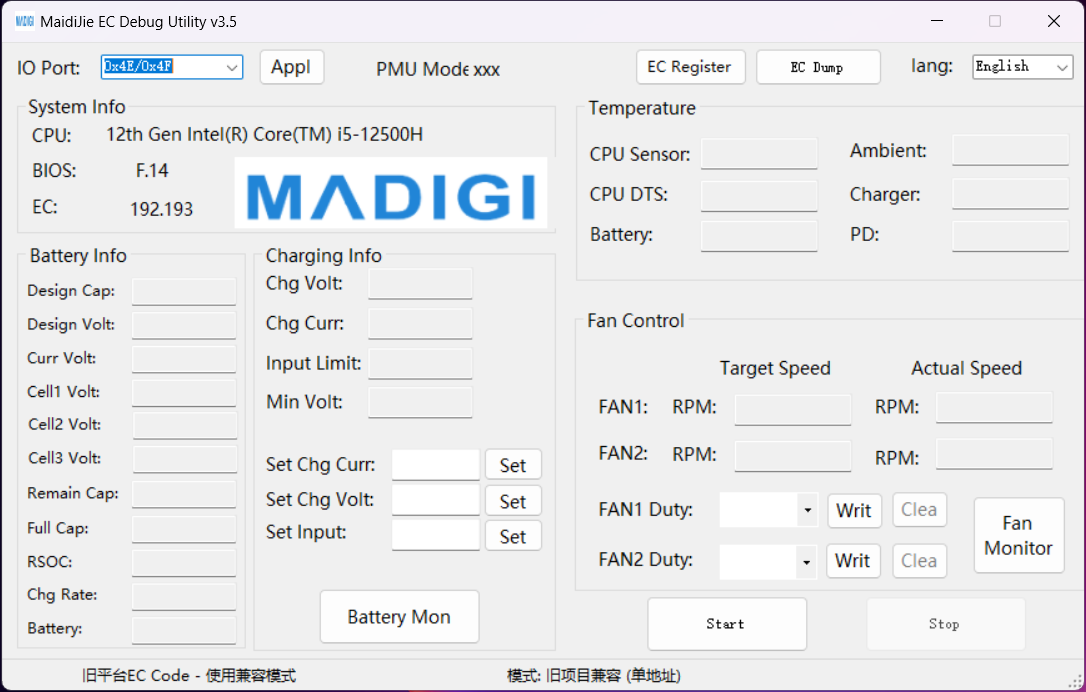
Figure 4. Actual speed, Duty settings, and Start / Stop buttons in the main window (click to view the original image)
4.2 Open the Fan Monitor Window
Once fan-speed readings are available, click Fan Monitor next to the Duty settings to open the monitoring window.
The Time, Fan1 RPM et Fan2 RPM fields show the recording time and the corresponding fan speeds. See Section 7.2 for instructions on starting a recording and exporting the log.
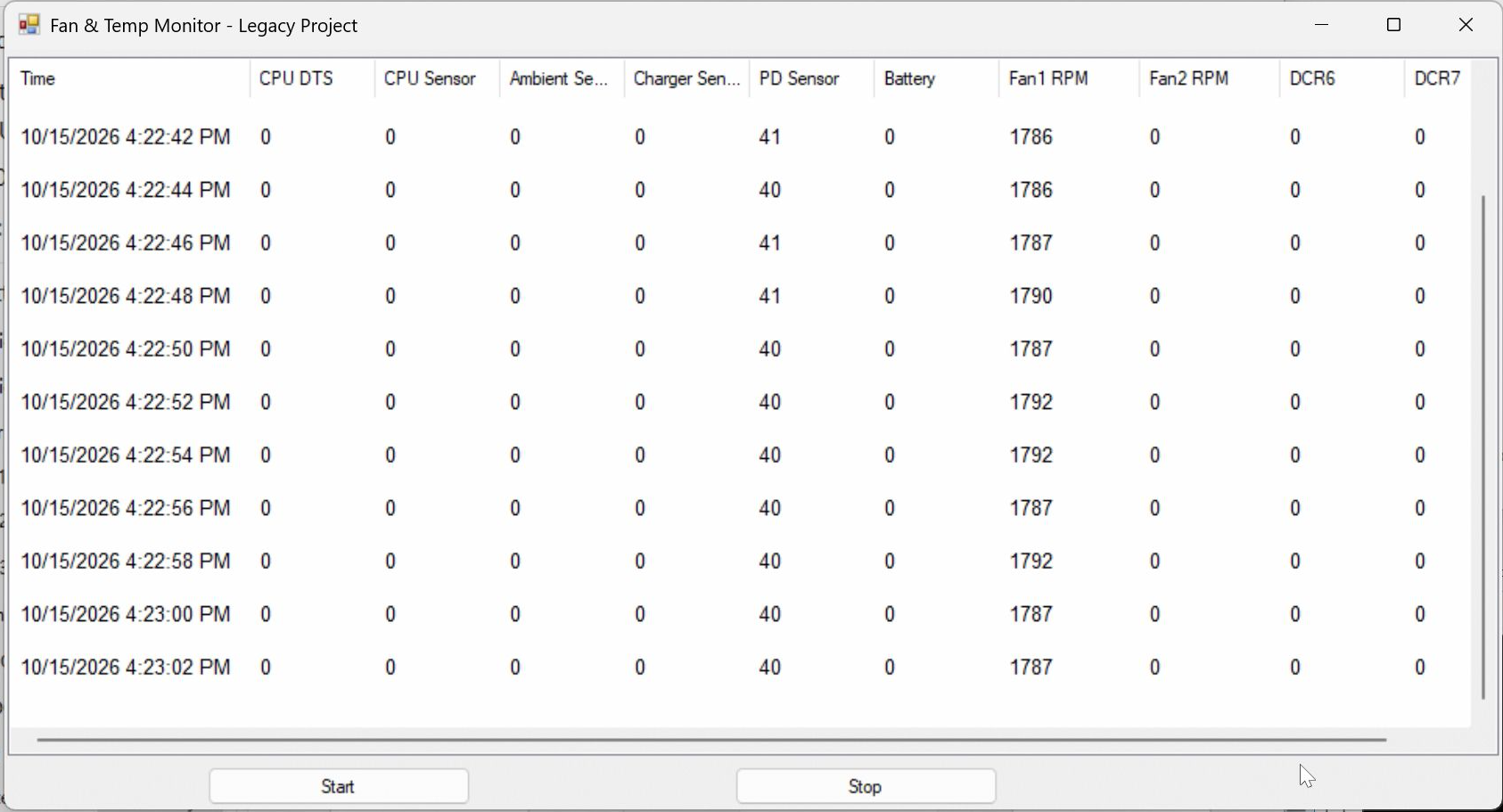
Figure 5. Fan Monitor window (click to view the original image)
5. Adjust Fan Speed Manually
- Follow Section 4 and confirm that fan-speed data is being read correctly.
- Locate FAN1 Duty in the main window and set the desired fan duty percentage.
- Click the adjacent Writ button on the same row to apply the setting.
- Observe the FAN1 Actual Speed reading and the fan’s behavior to check the effect of the change.
Adjustment note: Assess the result using the actual fan speed, noise level, and device temperature. When finished, follow the next section to restore automatic fan control.
6. Restore Automatic Fan Control
Click Stop at the bottom of the main window. The tool stops reading and controlling the fan speed. The device resumes automatic fan control according to its own cooling strategy.
Note: Use Stop in the main window to restore automatic control. The Stop button in the Fan Monitor window stops logging and generates a log file.
7. FAQ and Log Submission
7.1 Frequently Asked Questions
What should I do if no fan-speed data appears?
Make sure all files have been extracted and the tool is running as administrator. Check that the correct I/O port is selected, that you have clicked Appl to apply it, and that you have clicked Start in the main window. If the default port cannot read data, select the platform-specific fallback port described in Section 3. Contact GEEKOM Support if data is still unavailable.
Is Linux supported?
The tool is currently available for Windows only. Linux is not supported.
7.2 Record and Export a Log
- Follow Section 4 to confirm that fan-speed readings are available and open the Fan Monitor window.
- Click Start at the bottom of the Fan Monitor window to start logging. The tool records the current fan speed and other available parameters every 2 seconds.
- When you have finished recording, click Stop at the bottom of the Fan Monitor window. The tool generates a .csv log file in the same folder as the EC_Debug_tool executable.
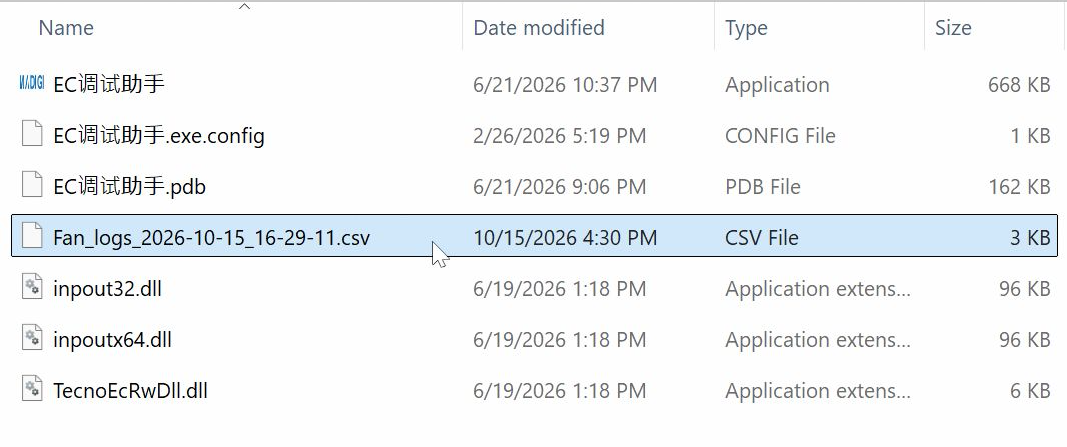
Figure 6. CSV log generated in the tool folder (click to view the original image)
| Stop button location | Function |
|---|---|
| Fan Monitor window | Stops logging and generates a CSV file |
| main window | Stops reading and manually controlling the fans, restoring automatic fan control |
7.3 Contact Technical Support
If you notice behavior such as the examples below, record a log while it occurs and send it to GEEKOM Support for assessment:
- The fan continues running at high speed while the device is under a light load and its temperature has stabilized.
- The CPU temperature remains high while the fan speed stays low.
Include the following information:
- Device model.
- BIOS version and EC firmware version; see Section 7.4 for instructions on finding them.
- CSV log file, along with fan-speed screenshots if needed.
- Description of the issue and the conditions when it occurs, such as the programs running, CPU temperature, and whether a manual fan duty percentage was applied.
Whether fan behavior is abnormal must be assessed together with the model’s cooling strategy, device load, and temperature changes. A single temperature or speed reading is not enough to determine a fault.
7.4 Check the BIOS and EC Versions
- On the Windows desktop, press Win + R to open the Run dialog.
- Type msinfo32, then press Enter or click OK to open System Information.
- Sélectionnez System Summary on the left, then find the two items listed below in the right-hand pane.
- Note the versions or send GEEKOM Support a screenshot showing both items.
| Item in System Information | Information shown |
|---|---|
| BIOS Version/Date | BIOS version and date |
| Embedded Controller Version | EC firmware version |
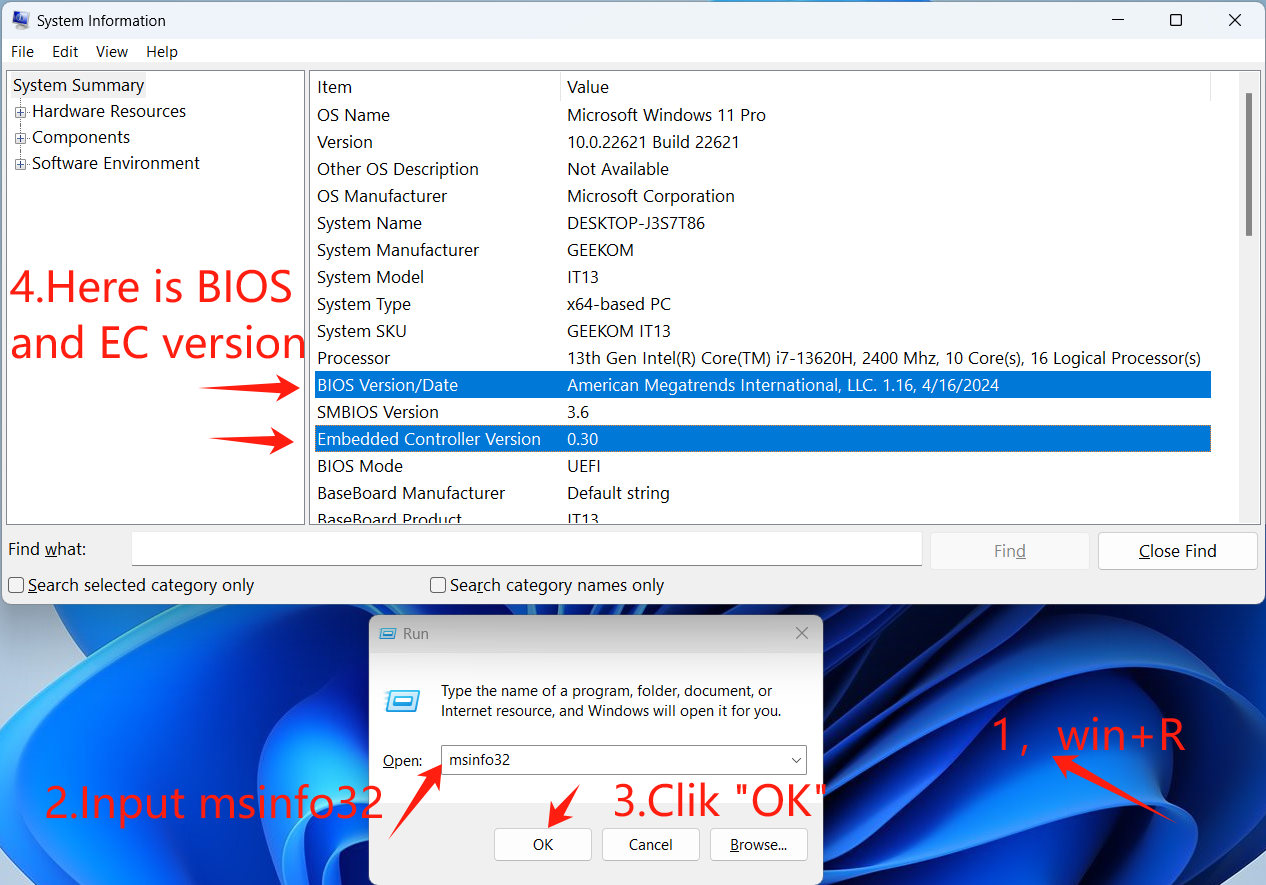
Figure 7. Checking BIOS and EC versions in Windows System Information (click to view the original image)
The version numbers in the screenshot are examples only. Use the information shown on your own device.

 Français
  English
  Deutsch
  English (UK)
  English (Australia)
  English (Canada)
  Italiano
  Español
  Русский
  日本語
日本語