
Updated on February 2, 2026
The following methods do not need to be performed in any specific order; you can choose any one of them based on your personal needs.
1.Update to the Latest BIOS and EC
New BIOS versions typically optimize the performance of the current device and fix compatibility-related issues. If your device is a relatively new model, BIOS updates are often released frequently. Updating the BIOS can help your device run more smoothly.
The EC firmware is responsible for regulating the device’s thermal management strategy, lighting, and key functions. New versions of the EC typically optimize the thermal management strategy based on customer feedback to reduce operational noise.
- Accessing the GEEKOM Technical Support website is the best way to obtain drivers and firmware: https://service.geekompc.com
- BIOS & EC Update Toturial:https://service.geekompc.com/faq/update-bios-ec/
2.Enable Performance Mode in BIOS
Setting the operating mode to Performance Mode in the BIOS can enhance CPU performance, leading to more stable frame rates and faster responsiveness when running software or games. However, this will increase power consumption and heat generation under high load. To maintain stable temperatures, the cooling fans will operate at higher speeds, resulting in increased system noise.
Setup Instructions
- Enter BIOS: During startup or restart, repeatedly press the Del or Delete clé before the GEEKOM logo appears on screen to enter the BIOS menu (some models also support pressing the Esc key).
- Locate the Setting: Due to differences in interface layouts across models or BIOS versions, the option is typically located under sub‑menus within the Advanced section. Look for an option named Mode d'alimentation or similar. If this option is not available, adjusting the FAN Mode can also achieve a similar effect.
- Common Methods to Modify BIOS Modes in GEEKOM Products
- Modify the Setting: Use the keyboard arrow keys to select the option, press Entrer, and change its value to Performance Mode.
- Save and Exit: Once the modification is complete, press F4, select Oui to save the changes and exit. The computer will restart automatically, and the new settings will take effect.
| 3 Common Methods to Modify BIOS Modes in GEEKOM Products |
| IT13 BIOS Mode SettIng: |
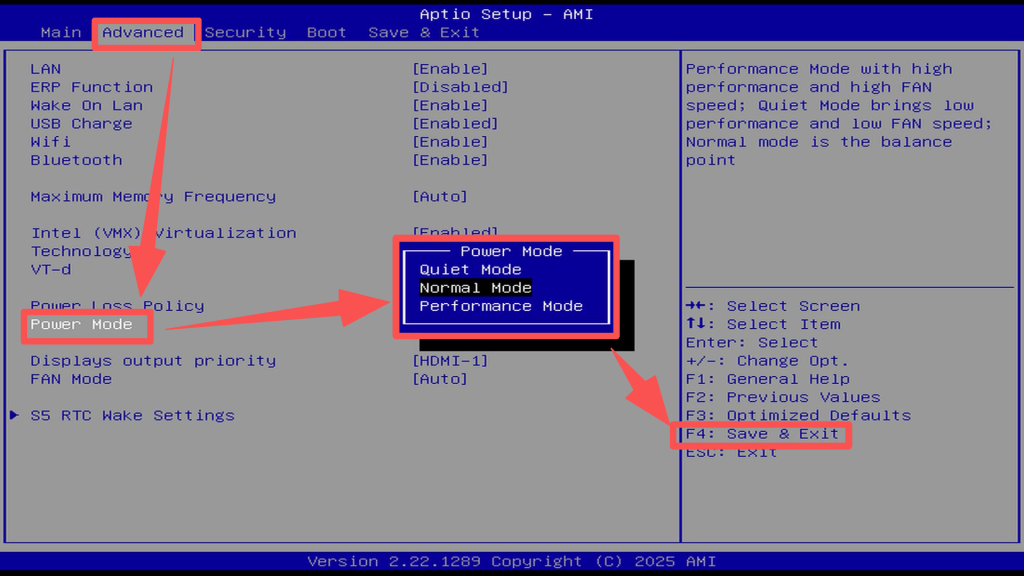 |
| GT1 Mega BIOS Mode SettIng: |
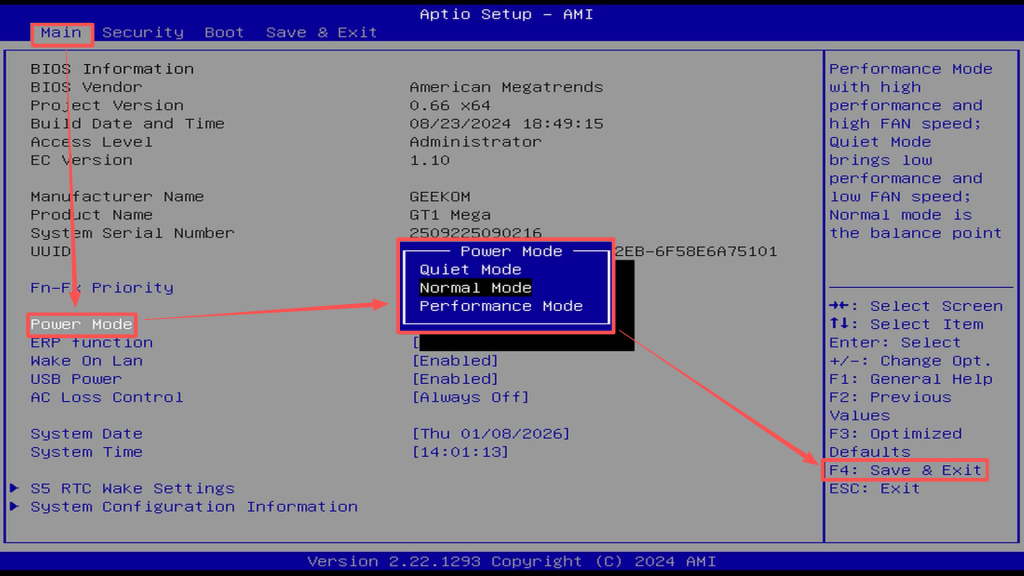 |
| A9 Max BIOS Mode SettIng: |
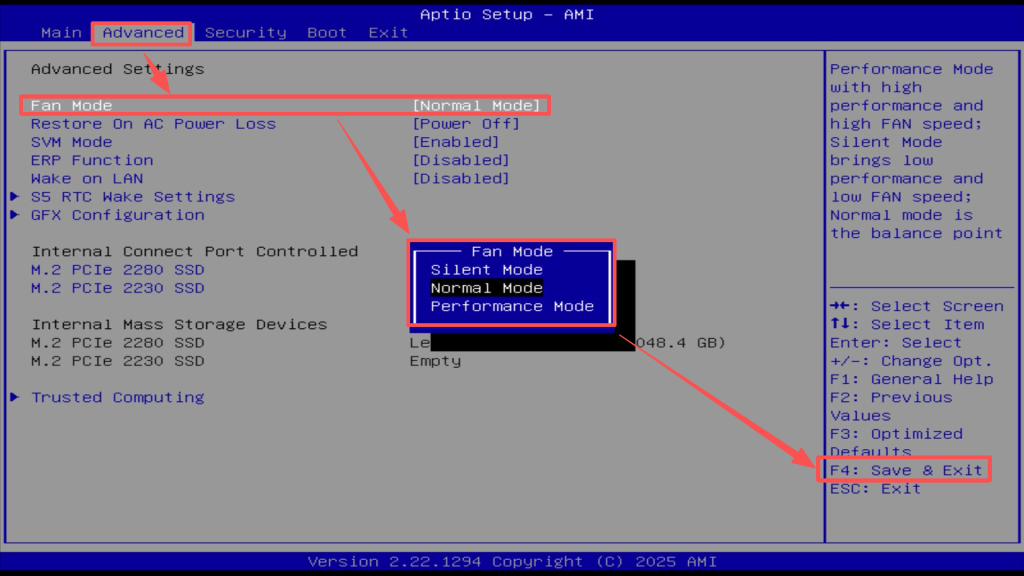 |
Friendly Reminders
- Cooling and Environment: After enabling Performance Mode, ensure that the area around the device is well‑ventilated and that the cooling vents are not blocked.
- Use as Needed: For light‑duty scenarios such as daily office work or web browsing, Balanced Mode or Silent Mode provides sufficient performance while offering a quieter experience and lower power consumption.
- Restore Defaults: If you encounter system instability in Performance Mode, you can re‑enter the BIOS, press F3 to reset, change the mode back to Normal, and then press F4 to save.
3.Adjust VRAM Allocation
Adjusting the video memory will affect the smoothness of running games, playing high-resolution videos, and operating 3D editing/modeling software.
- Intel platform products do not require manual adjustment. The dynamic allocation mechanism is already quite intelligent and can efficiently allocate up to 4–8GB (or even more) for video memory usage by default.
- For AMD platform products, 4GB of system memory is allocated for use as video memory by default, with support for adjusting the allocation up to a maximum of 16GB.
- Increasing the video memory allocation can, to some extent, alleviate stuttering when the computer is running high-load programs, but it does not guarantee a complete resolution of performance issues.
Common modification methods are as follows; you can make the changes directly in the BIOS:
(The method to enter the BIOS can be found in point 2 for how to enter the BIOS.)
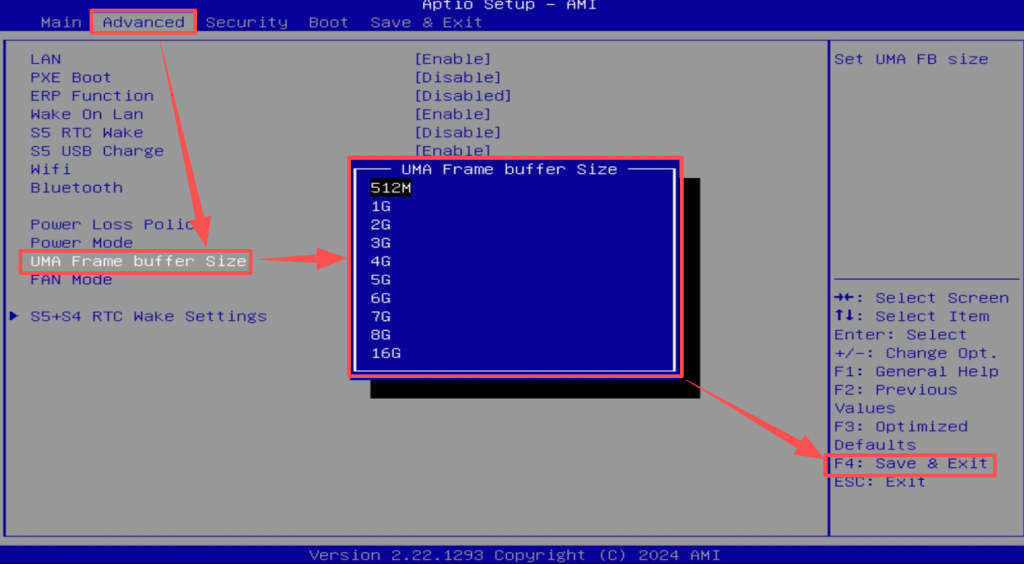
The VRAM modification options for certain products are hidden and need to be adjusted in the advanced BIOS mode. Refer to the video below for guidance:
BIOS Unlock Tool Toturial:https://service.geekompc.com/faq/bios-unlock-tool-user-guide/
| A8 Max Modified Video Memory |
| Duration: 2’14s | Resolution: 1920×1080 |
4.Update Hardware Drivers
The drivers pre-installed on GEEKOM products are stable versions that have been tested and verified, not the latest versions. The optimization and performance tuning for the CPU may slightly lag behind newer driver versions.
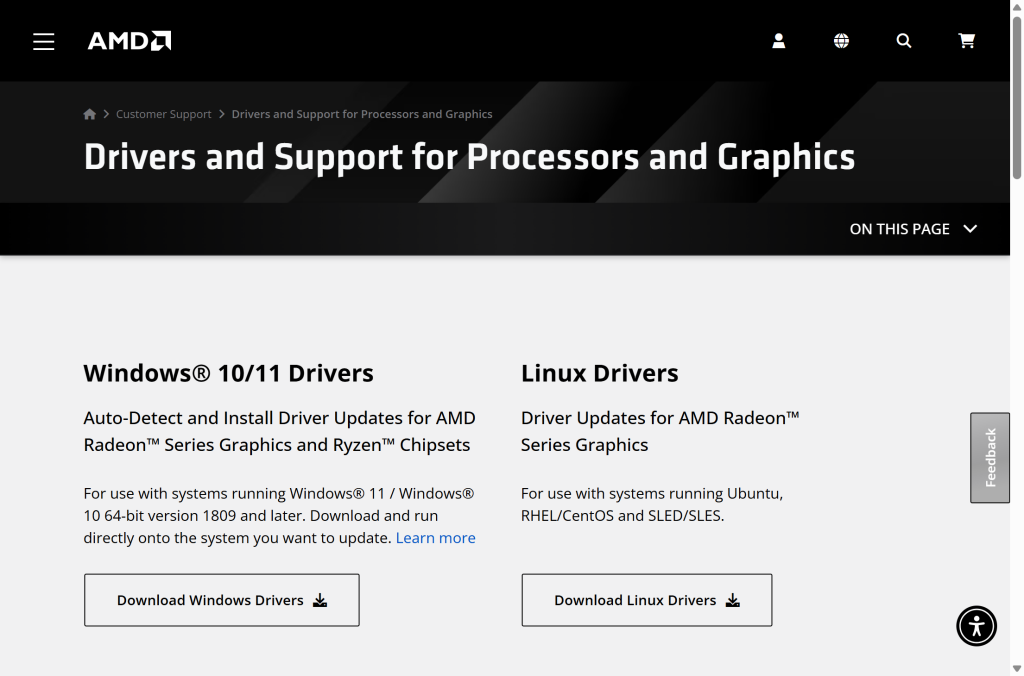
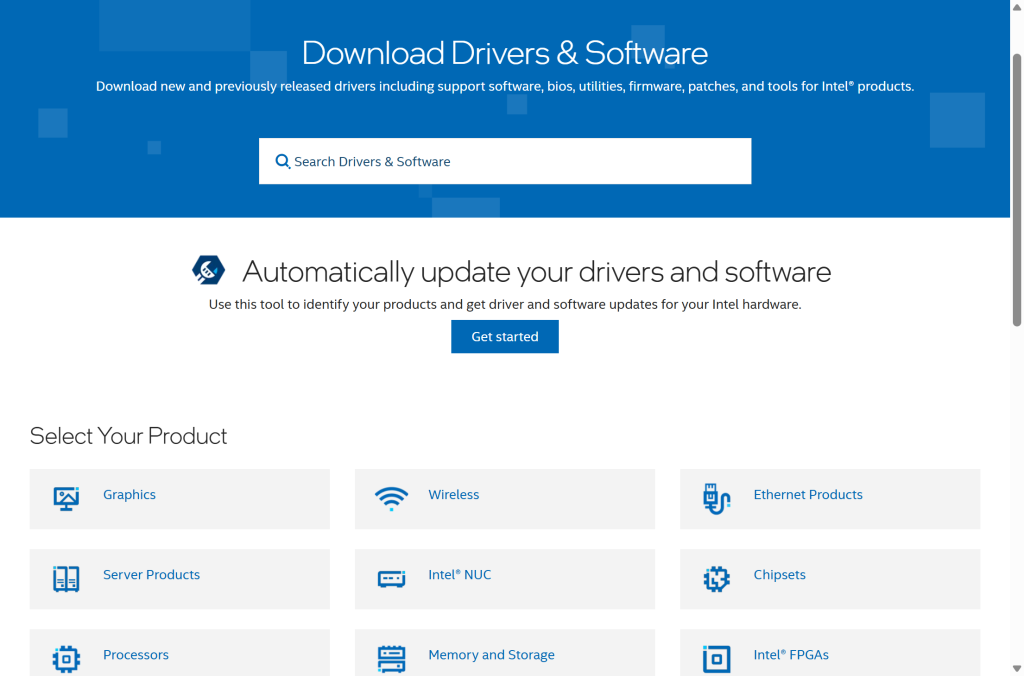
Therefore, it is recommended to directly install the latest graphics drivers. Both AMD and Intel platforms offer driver assistant tools that can be used to update to the most recent drivers.
- AMD Driver Assistant download link:https://www.amd.com/en/support/download/drivers.html
- Intel Driver Assistant download link:https://www.intel.com/content/www/us/en/download-center/home.html
If the latest driver does not work properly, you can also visit the GEEKOM Technical Support website to download and install the stable version of the driver — https://service.geekompc.com/
Merci d'avoir regardé. S'il y a des erreurs, vos corrections sont les bienvenues.

 Français
  English
  Deutsch
  English (UK)
  English (Australia)
  English (Canada)
  Italiano
  Español
  Русский
  日本語
日本語