
Updated on October,29, 2026
EC (Embedded Controller) firmware manages functions such as cooling and fan behavior, keyboards, buttons, lighting, and certain ports. The functions it controls vary by model. Installing incompatible EC firmware may cause ports, buttons, or other functions to stop working correctly.
This guide covers two methods: updating from a USB flash drive et updating in Windows. Choose one method supported by the update package for your device. You do not need to use both.
Before you begin
- Use compatible firmware. Check that the package supports your exact device model and hardware revision. The IT13 and X14 Pro packages shown here are examples, not firmware for other models.
- Update BIOS and EC as a matched pair when recommended. This is especially important for laptops, because BIOS and EC work together. Use the paired releases provided for your model and follow any update order specified in the package instructions.
- Back up important data. Although EC updates generally carry less risk than BIOS updates, you should still back up important files and save your work before starting.
- Keep the power adapter connected. Do not disconnect power, force a shutdown, or manually restart the device during the update.
- If BitLocker is enabled, back up your recovery key and suspend protection before updating firmware or changing Secure Boot settings. Resume protection afterward. See the BitLocker instructions.
A laptop’s first restart may take about 5 minutes. This is normal after a BIOS or EC update. Keep the power adapter connected and wait. Do not repeatedly press the power button or force a shutdown. Subsequent startups should return to their normal duration.
Method 1: Update EC from a USB flash drive
1. Prepare the USB drive and copy the files
- Prepare a USB flash drive formatted as FAT32. If you need to format it, back up its contents first. Formatting erases the files on the drive.
- Fully extract the USB EC update package for your model.
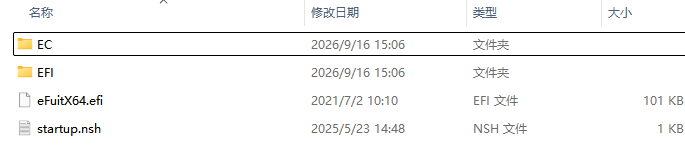
- Copy all extracted files and folders to the USB drive’s root directory—the first location you see when you open the drive. Do not place them inside an extra outer folder, or delete or modify files in the package.
In the IT13 example, the USB drive’s root directory contains the CE et EFI folders, an EFI application, and the startup.nsh script, as shown below.
2. Disable Secure Boot
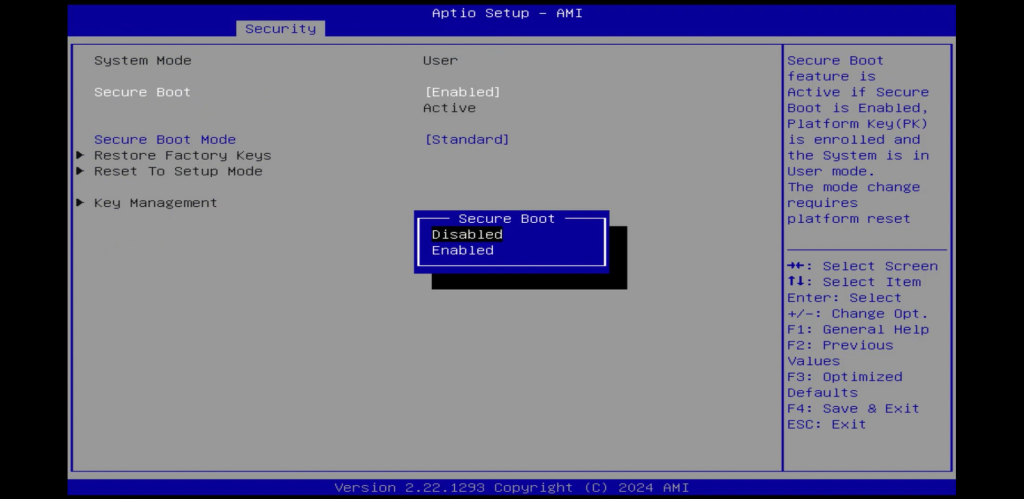
Disable Secure Boot before selecting the USB drive as the boot device. Otherwise, a Secure Boot warning may prevent the update program from starting. If Secure Boot is already disabled, leave it as it is.
- Restart the device and repeatedly press Del during startup to enter BIOS Setup.
- Go to Security → Secure Boot and set Amorçage sécurisé to Disabled. The menu location may vary by model.
- Sélectionnez Save & Exit and confirm the changes. If using a shortcut key, follow the key shown on your BIOS screen.
3. Boot from the USB drive
- Insert the prepared USB drive and restart the device.
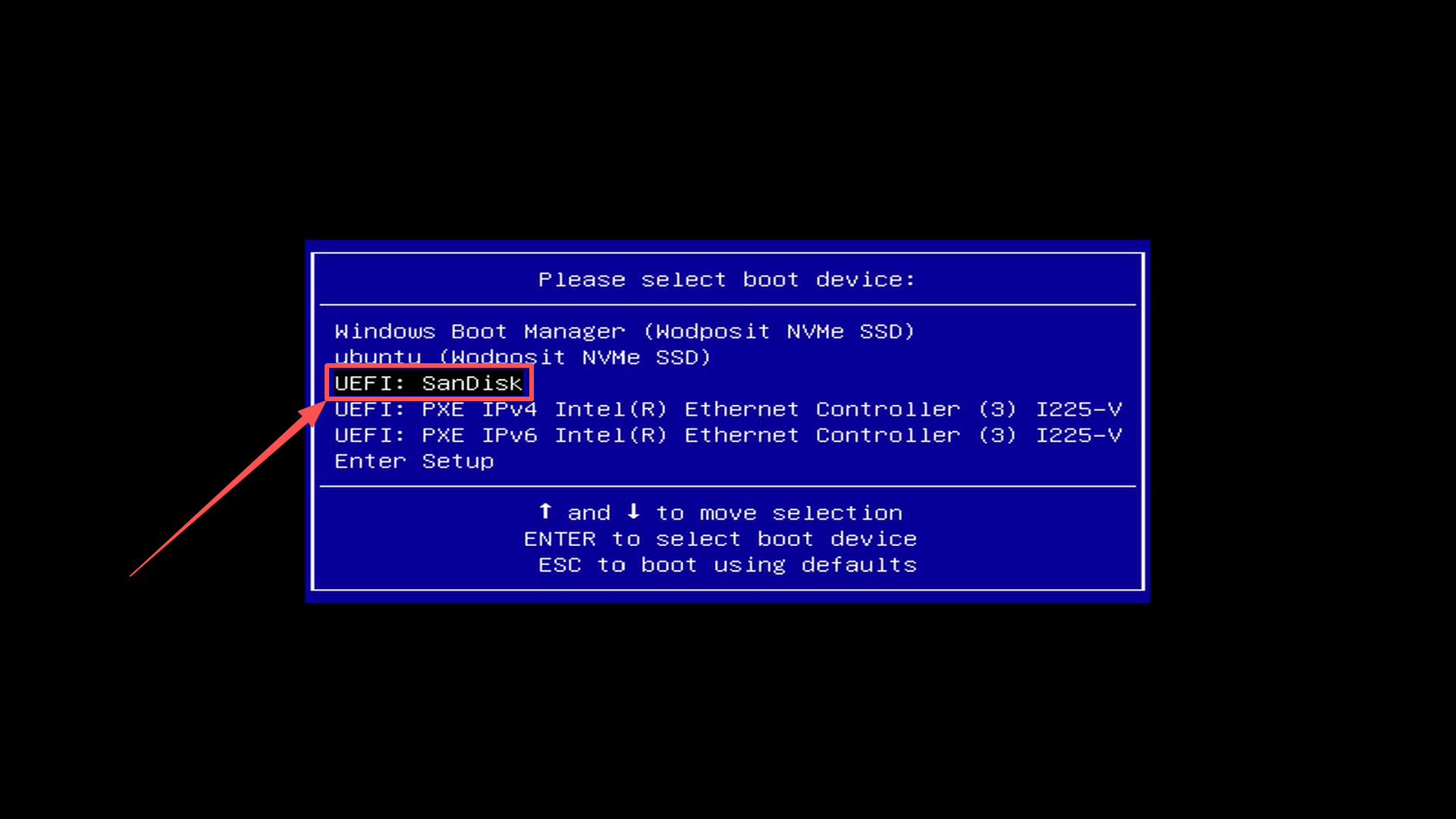
- Repeatedly press F7 during startup to open the boot device menu.
- Use the arrow keys to select the USB drive’s UEFI entry, then press Entrer. The screenshot shows UEFI: SanDisk; your drive may have a different name.
4. Wait for the automatic update
The update script starts automatically after the device boots from USB. When the countdown appears, wait for it to continue. Do not press Esc to skip startup.nsh.
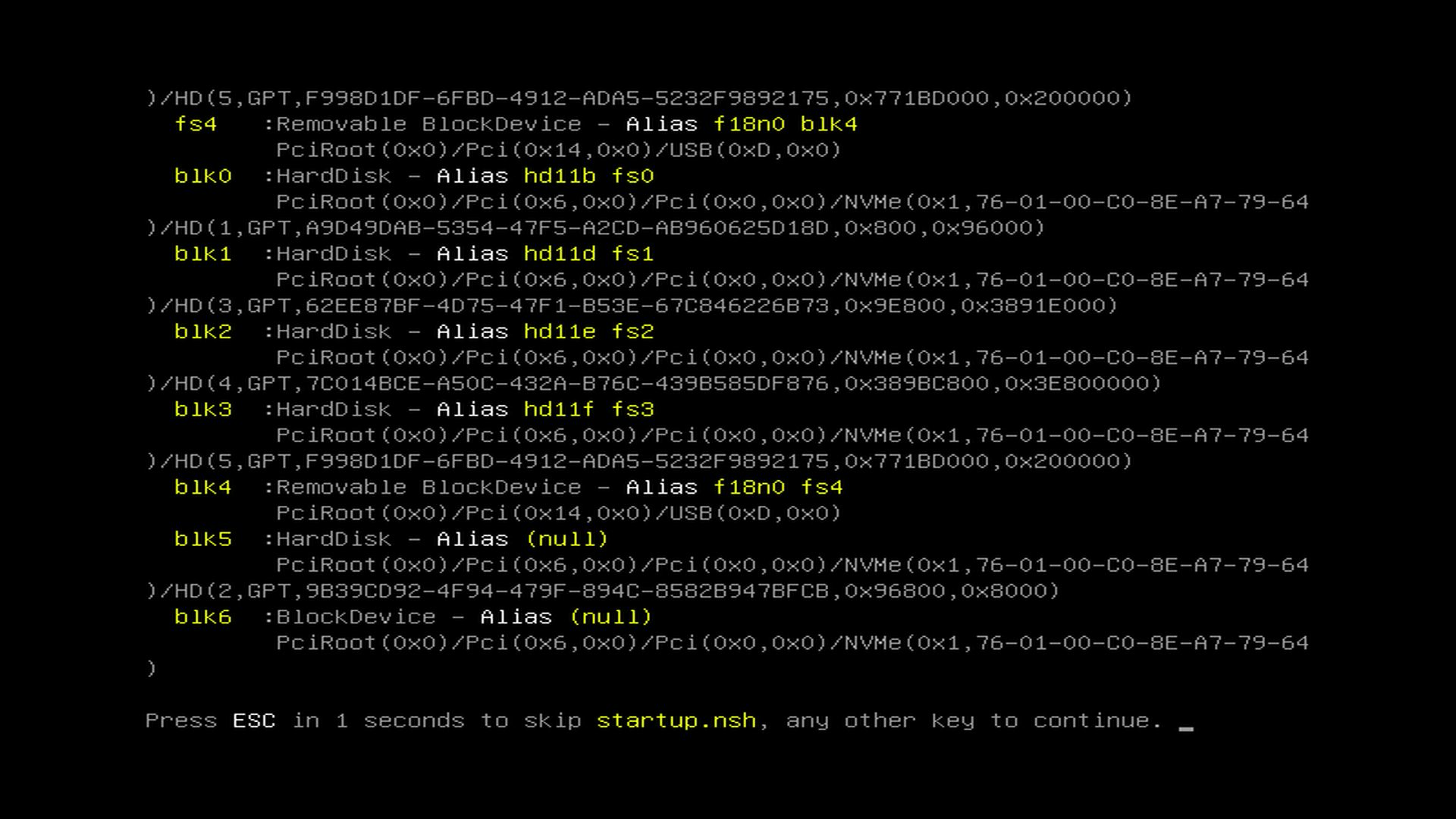
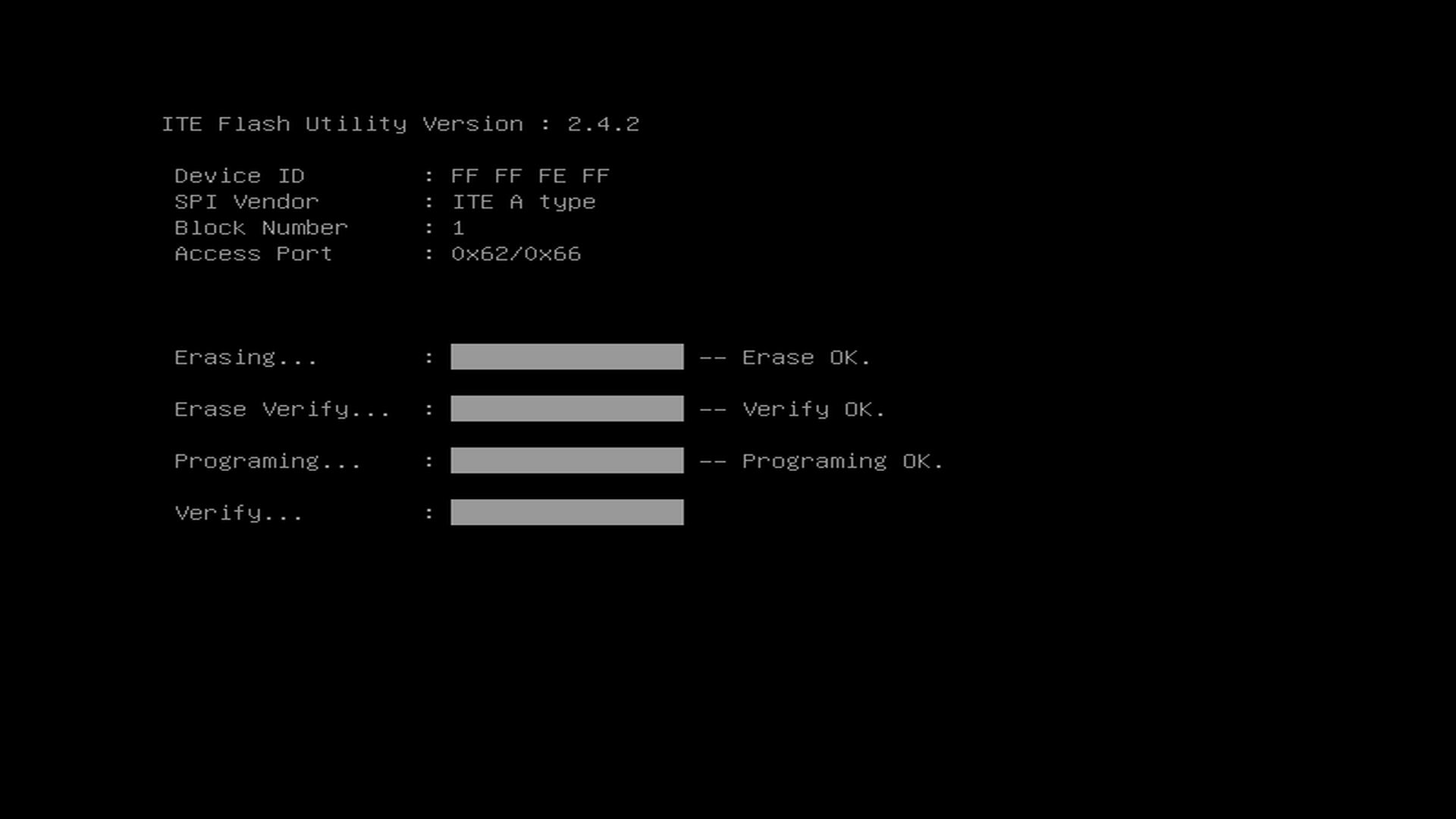
The screen then shows the erase, programming, and verification stages. The update usually takes about 3 minutes, but the actual time may vary. Wait for the process to finish; do not turn off the device just because 3 minutes have passed.
Keep both power and the USB drive connected throughout the update. Do not remove the drive, shut down the device, or restart it manually.
5. Wait for the device to restart or shut down
After the update process finishes, the device may restart or shut down automatically. Check the power indicator before taking the next step:
| State after the update finishes | What to do |
|---|---|
| The screen is black and the power indicator is on. | Wait for the restart to finish. Do not disconnect power or repeatedly press the power button. |
| The device has shut down automatically and the power indicator is off. | Remove the USB drive, then briefly press the power button once to start the device. |
If the device restarts automatically into the operating system, remove the USB drive after startup. A laptop’s first restart may take about 5 minutes.
These actions apply only after the update process has ended. A black screen or power indicator alone does not confirm a successful update. You must also verify the EC version.
Method 2: Update EC in Windows
1. Fully extract the update package
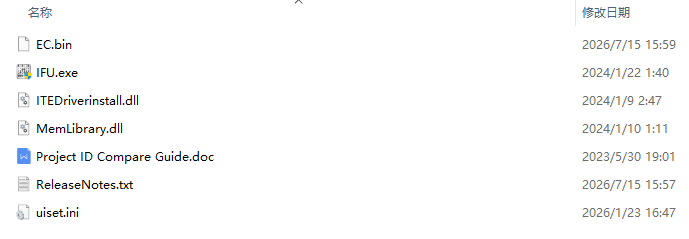
Fully extract the Windows EC update package for your device. Package contents vary by model. Both examples below support Windows updates, but they are not interchangeable between models.

Security software may block the updater. EC updates require low-level hardware access, which may trigger a security alert and prevent the program from starting or completing the update. First confirm that the package is from GEEKOM and supports your device. If blocked, temporarily allow the updater as needed, or temporarily pause the relevant real-time protection if necessary. Restore protection afterward. Alternatively, use the USB EC update package for your model.
2. Run the updater as administrator
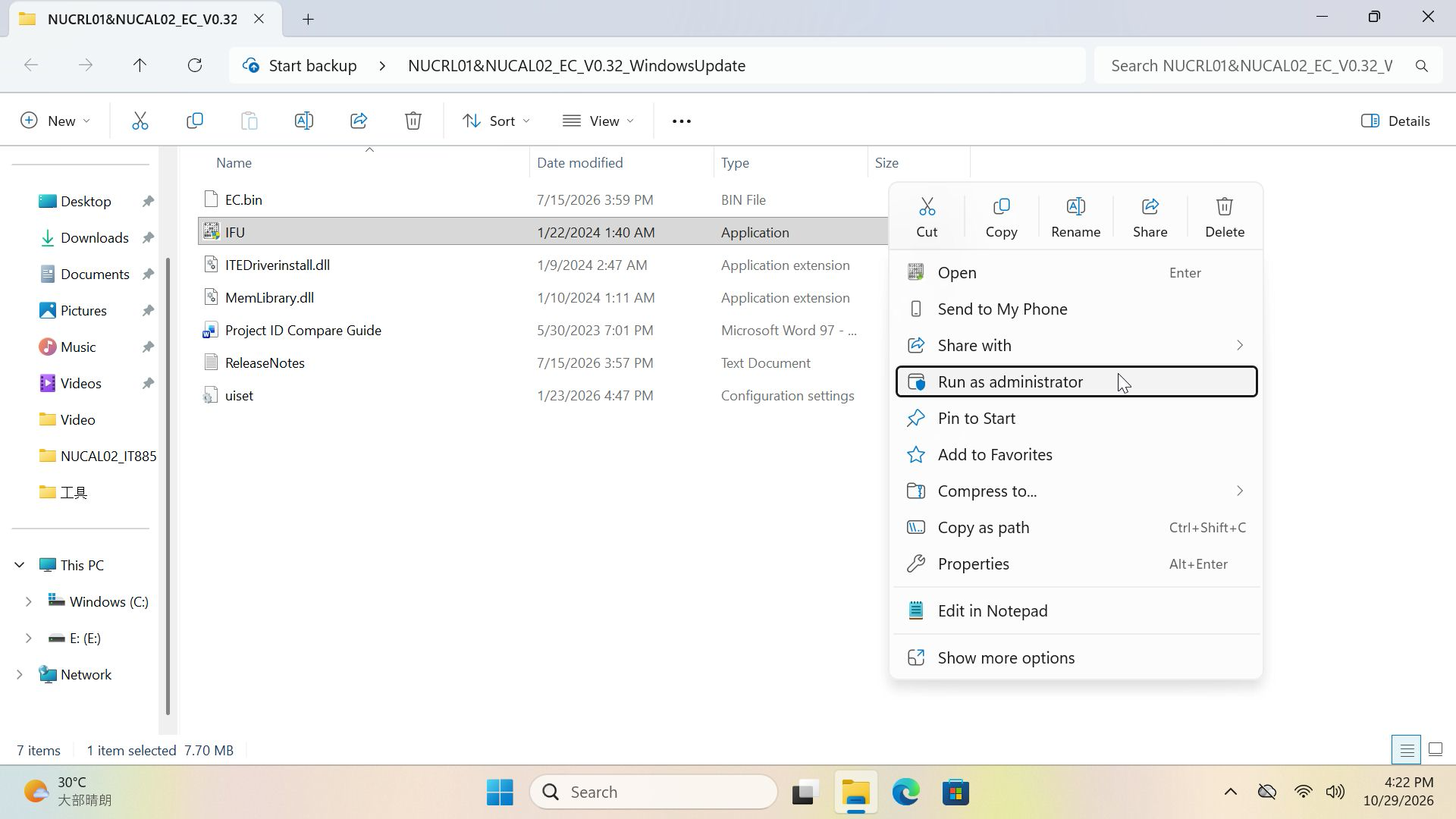
Save your work and close other applications. In the extracted folder, right-click the appropriate update program and select Run as administrator.
| Package example | Program to run |
|---|---|
| IT13 | IFU.exe (shown as IFU if file extensions are hidden) |
| X14 Pro laptop | The supplied EC updater, such as EC_X14_V2.21.00.exe |
3. Wait for the update and automatic restart
The updater will begin the EC update. The screenshot below shows the IT13 progress window. In this example, you do not need to select a firmware file or click other buttons.
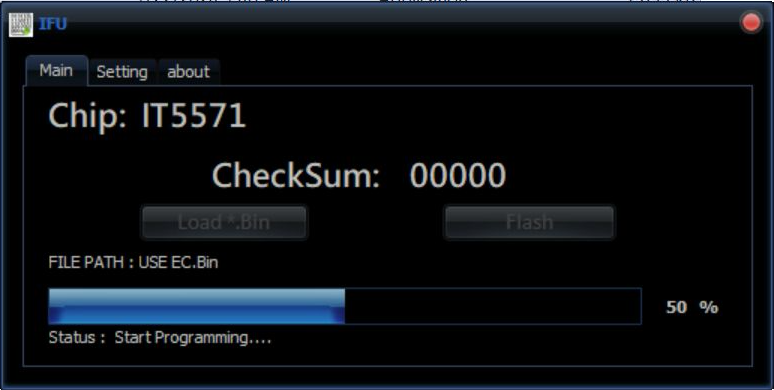
Keep the power adapter connected. Do not close the updater, shut down the device, or restart it manually. When the update finishes, the device will restart automatically. Wait until the Windows desktop appears.
The laptop procedure is similar: run the supplied updater as administrator, then wait for the update and automatic restart. The first restart may take about 5 minutes; this is normal.
Verify the EC version and finish
1. Check the installed EC version
After the device starts normally, use either method below to check the EC version. It must match the target version of the package you used. A version change alone does not confirm that the correct firmware was installed.
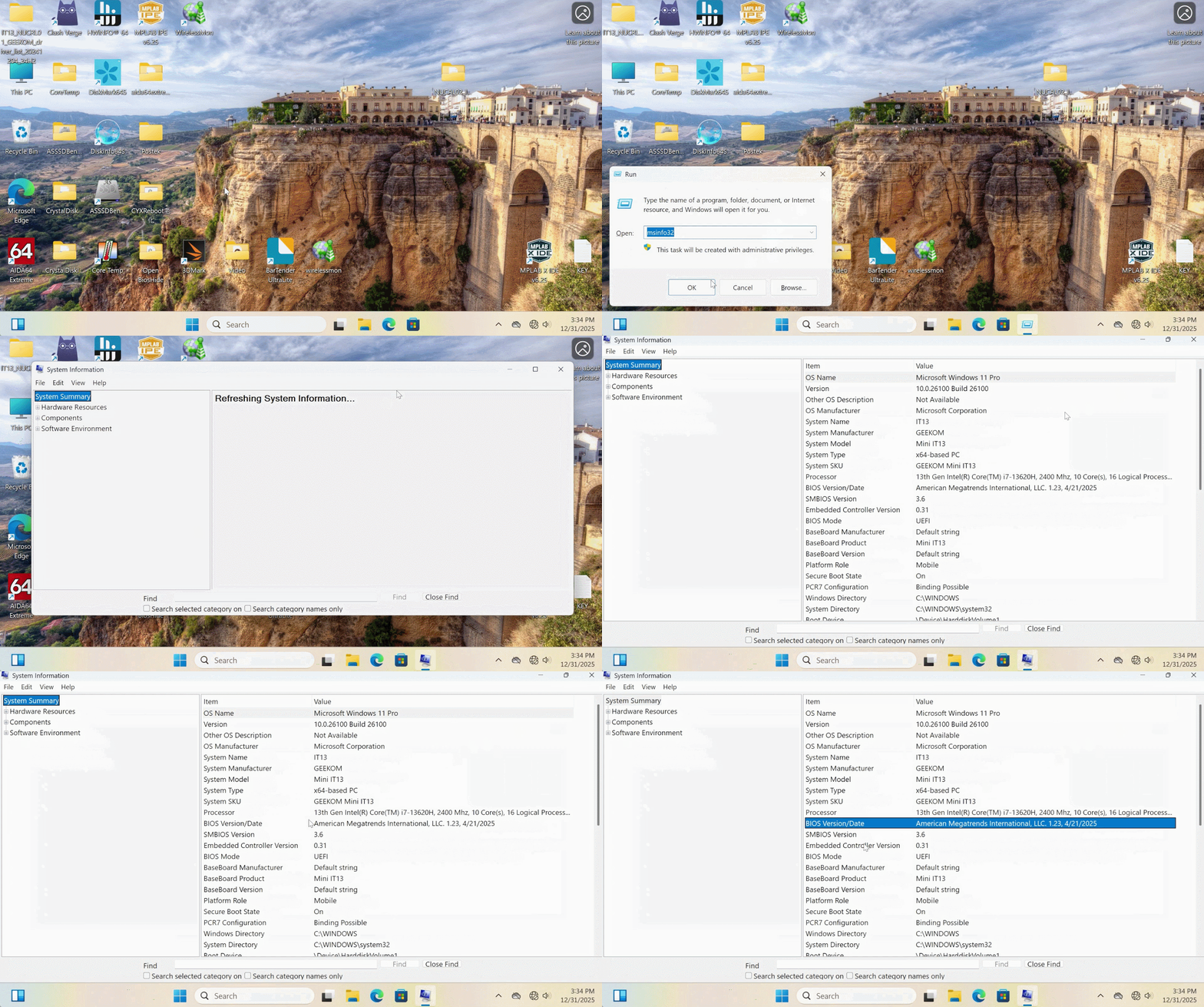
In Windows: press Win + R, enter msinfo32, and press Enter. Under System Summary, find Embedded Controller Version.
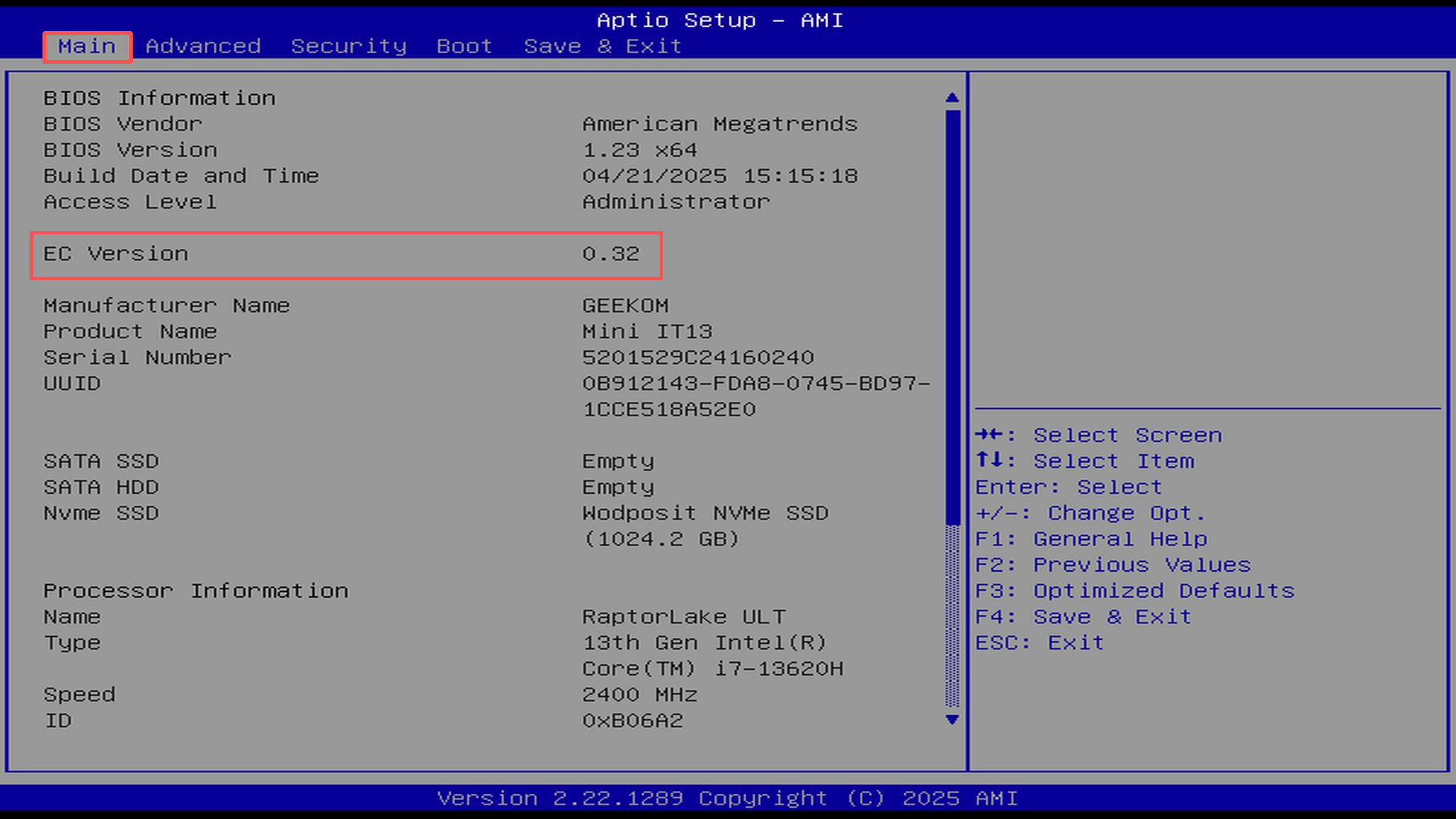
For another operating system, or if the version is unavailable in Windows: restart the device and repeatedly press Del during startup to enter BIOS Setup. Find EC Version on the Main page.
2. Shut down and reconnect power after confirming success
- Wait for the first startup to finish and confirm that the installed EC version matches the update package.
- Shut down the device normally. Remove the USB drive after shutdown if it is still connected.
- Unplug the power cable and plug it back in; no additional waiting period is required. Press the power button to start the device. For a laptop, disconnect and reconnect the power adapter.
Do not disconnect power while the update or first restart is still in progress.
3. Restore any settings changed for the update
- If Secure Boot was originally enabled and you disabled it for the USB update, enable it again after completing the update.
- Resume BitLocker and security protection if you paused them.
Troubleshooting
| Issue | What to check |
|---|---|
| USB boot fails or a Secure Boot warning appears. | Confirm that Secure Boot is disabled, the USB drive is FAT32, and all package contents are extracted to its root directory. Select the drive’s UEFI entry in the F7 boot menu. |
| The Windows updater cannot start or explicitly reports a failure. | Confirm that the firmware supports your model and hardware revision, all package files are present, and you are running as administrator. Check for security software blocking the updater. You can also use the USB update package for your model. |
| The installed EC version does not match the target version. | Check the package and supported model before considering the update successful. If you used the Windows method, you can switch to a compatible USB update package after confirming compatibility. |
| A laptop takes longer to restart for the first time. | The first restart after a BIOS or EC update may take about 5 minutes. Keep power connected and wait. |
| Progress does not change for a long time, or the first restart takes much longer than expected. | Do not assume failure based on elapsed time alone. Do not disconnect power or launch another updater while the flash status is unclear. Record the screen or error message and check firmware compatibility. Consider another update method only after confirming that the original process has ended. |
Filenames, version numbers, chip information, and screens in this guide are examples. Actual details may vary by model and update package.

 Français
  English
  Deutsch
  English (UK)
  English (Australia)
  English (Canada)
  Italiano
  Español
  Русский
  日本語
日本語